要在 WooCommerce 中接受加密货币付款,您可以添加兼容的支付网关插件,无须替换现有结账流程。OxaPay 将加密货币付款与 WooCommerce 订单关联,让客户使用加密货币付款,而商家仍可在 WordPress 中管理销售。
OxaPay WooCommerce 插件为每笔订单创建支付账单,显示可用的支付选项,并在付款状态变化时同步订单状态。商店无须公布可重复使用的钱包地址,也不必自行开发交易匹配系统。
本指南介绍插件的作用、安装与配置方法、商家需要关注的设置,以及如何在接受真实订单前测试完整支付流程。
WooCommerce 能接受加密货币付款吗?
可以。虽然加密货币不是 WooCommerce 内置的付款方式,但它可以通过兼容的支付网关扩展来接受加密货币。OxaPay 将加密货币选项添加到您现有的付款方式中,无须编写自定义集成代码。
已经持有 Bitcoin、USDT、USDC 或其他受支持资产的客户可以不用银行卡付款。对于商家,运营价值不仅是在结账页增加一个标志:每笔付款都会关联到相应订单,具有可追踪的状态和明确的确认流程。
加密货币付款适合国际客户、偏好数字资产的用户,或希望增加支付渠道的商家。费用和结算时间因支付方式、资产和网络而异,因此应将加密货币视为补充选项,而不是在所有情况下都保证比现有网关更快或更便宜的替代方案。
OxaPay offers an official WooCommerce plugin that is also listed in the WordPress Plugin Directory.
OxaPay 如何在 WooCommerce 结账流程中运行?
客户看到的支付页面与商店中的订单记录属于同一笔交易的两个部分。通常的结账流程如下:
- 购物者确认购物车,并在 WooCommerce 结账时选择 OxaPay。
- WooCommerce 创建订单,插件向 OxaPay 请求与该订单对应的加密货币支付账单。
- 购物者进入 OxaPay 支付页面,查看应付金额,并选择可用的币种和网络。
- 购物者从兼容的钱包转账,系统在检测和确认付款的过程中持续监控。
- 相关付款状态得到确认后,插件更新对应的 WooCommerce 订单。购物者可以返回商店。
The shopper’s return to the website is not itself evidence of payment. For fulfillment, stock release, or access to digital goods, rely on the verified WooCommerce payment status rather than the browser redirect.
安装前准备:商店和账户要求
首先,您需要一个已配置 WooCommerce 的正常运行的 WordPress 商店,以及有权安装支付插件的管理员账户。您还需要 OxaPay 账户和 Merchant API Key,用于将网关连接到您的商家配置。
确定客户真正需要的付款币种和网络,以及收款后希望如何处理资金。稳定币的可用性、网络选择和结算设置可能影响客户支持、交易成本和资金管理。
Before making changes to a live checkout, confirm current compatibility and release details on the official WordPress plugin listing. Keep a recent backup and set aside time to test an order from checkout through the expected order-status transition.
如何在 WooCommerce 中设置 OxaPay
1. 下载并安装官方插件
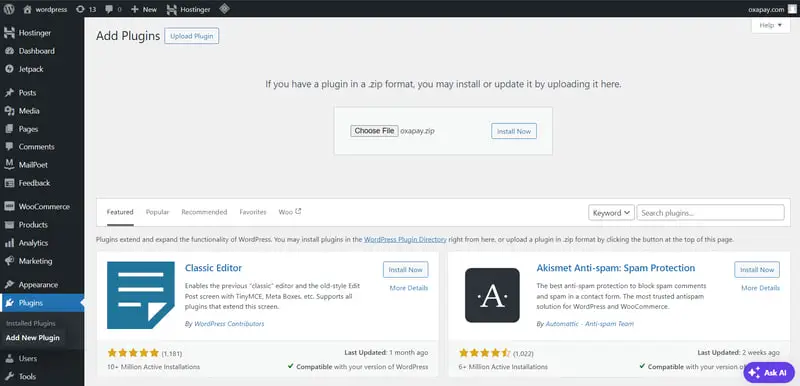
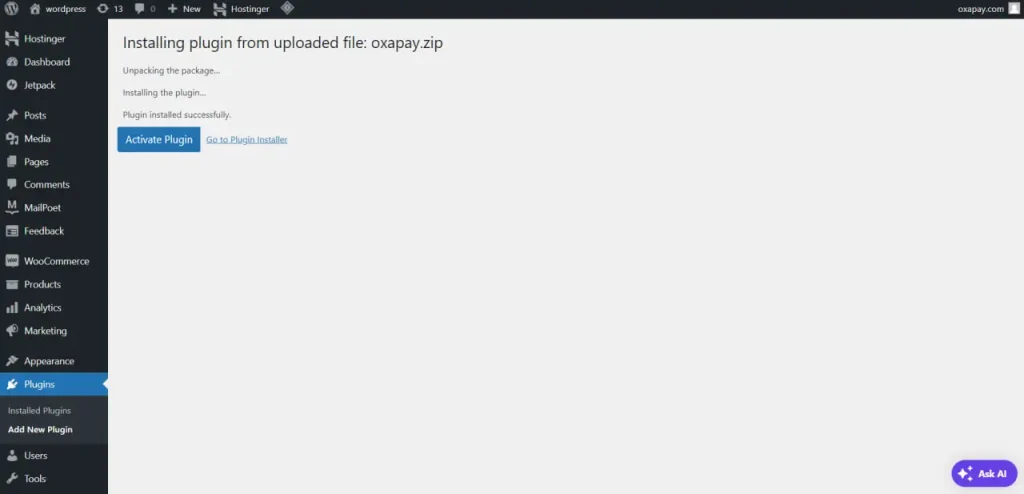
In your WordPress dashboard, open Plugins → Add New. Search for OxaPay and use the official listing, or select 上传插件 to install the current ZIP package from the OxaPay WooCommerce integration page. Choose 立即安装.
2. 启用插件
When WordPress reports that installation succeeded, click 激活插件. This installs the gateway into your store, but customers will not be able to use it reliably until you finish configuration and verify the checkout.
3. 创建或获取 Merchant API Key
Sign in to OxaPay and create or locate your Merchant API Key in the merchant settings. Keep the key private and use the merchant configuration intended for your store. For account-side guidance, see How to Set Up Your OxaPay Merchant Account.
4. 打开 WooCommerce 支付设置
在 Plugins → Installed Plugins, find OxaPay and use its 配置 link if available. You can also locate the gateway under WooCommerce → Settings → Payments, with labels depending on the version installed. Enable the OxaPay payment method and enter your Merchant API Key in the appropriate field.
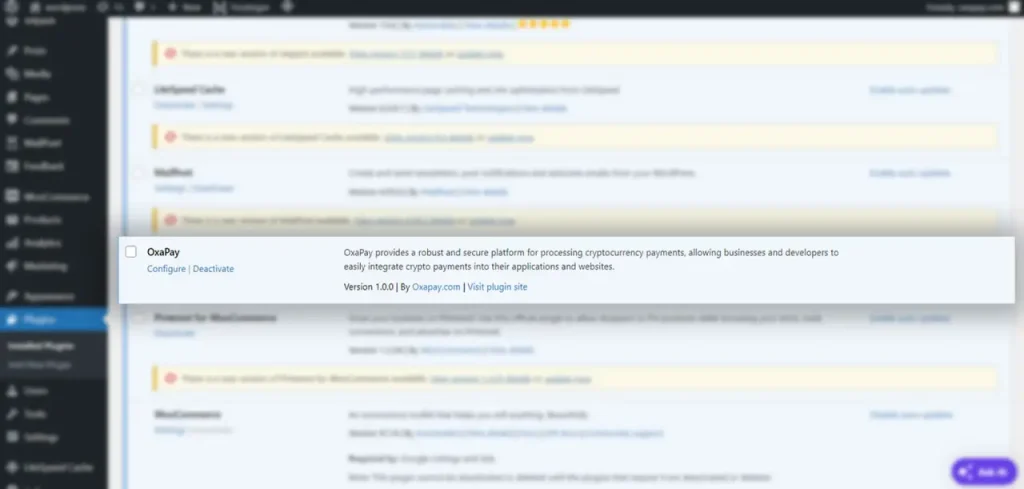
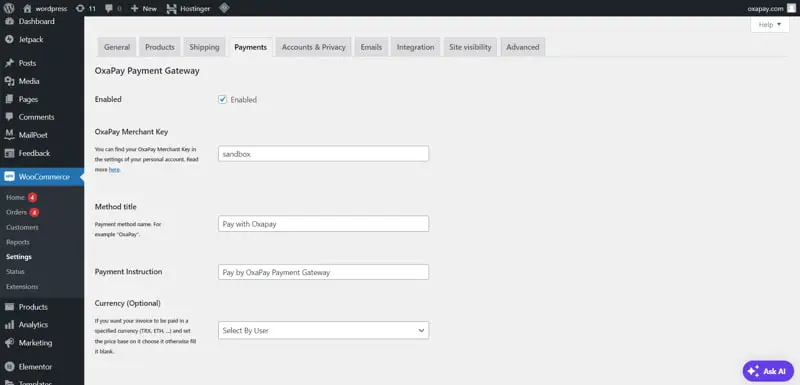
以上截图来自先前发布的文章版本。当前版本的 WordPress 和插件界面标签可能有所不同,请以最新界面和官方文档为准。
5. 选择面向客户的付款选项和资金处理方式
Offer currencies and networks that match customer demand rather than enabling every option by default. For example, stablecoins can suit customers who prefer an amount denominated in a dollar-pegged asset, while BTC or ETH may meet different preferences. Confirm the current supported combinations on the OxaPay Supported Coins page.
Separately, review OxaPay merchant settings for features such as Auto Convert to USDT 与 Auto Withdrawal. Underpayment and mixed-payment options may also be available depending on your configuration. These are merchant-level workflow decisions, not proof that every option is a toggle in every version of the WordPress plugin.
6. 保存、测试,然后启用真实付款
Save your gateway configuration. Where sandbox testing is supported by the installed plugin, use the current instructions to test without real funds. Then verify your chosen live configuration with a controlled order before relying on the gateway for customers. Do not assume an older screenshot’s sandbox entry field still represents the current testing method.
If the payment option does not appear, first confirm the gateway is enabled, the API key is correct, and the checkout method is supported. OxaPay’s WooCommerce documentation also describes a classic-checkout workaround for a specific missing-payment-method message in older setups; check version compatibility before applying it.
测试完整的加密货币结账流程,而不只是插件设置页面
在 WooCommerce 中看到 OxaPay 选项只是第一个检查点。创建一笔测试订单,像真实购物者一样跟踪交易,包括跳转到支付页面以及 WooCommerce 中的后续状态变化。
- Visibility: OxaPay appears alongside the other checkout methods and is selectable on the checkout your store actually uses.
- Amount and network: The invoice matches the order value, and the shopper can see the selected currency and correct blockchain network.
- Status synchronization: The order does not become eligible for fulfillment before the payment state you require is confirmed.
- Incomplete payments: Review how unpaid, underpaid, and expired invoices appear in both the OxaPay transaction history and WooCommerce order list.
- Customer return: The buyer can navigate back to the shop without the store treating navigation alone as payment proof.
- Delivery: Physical goods, downloads, memberships, or automated services are released only on the order status your business trusts.
在 WooCommerce、结账主题或支付插件发生重大更新后,重新执行检查。在某个页面模板或插件版本中正常运行的结账流程,换一个版本后可能表现不同。
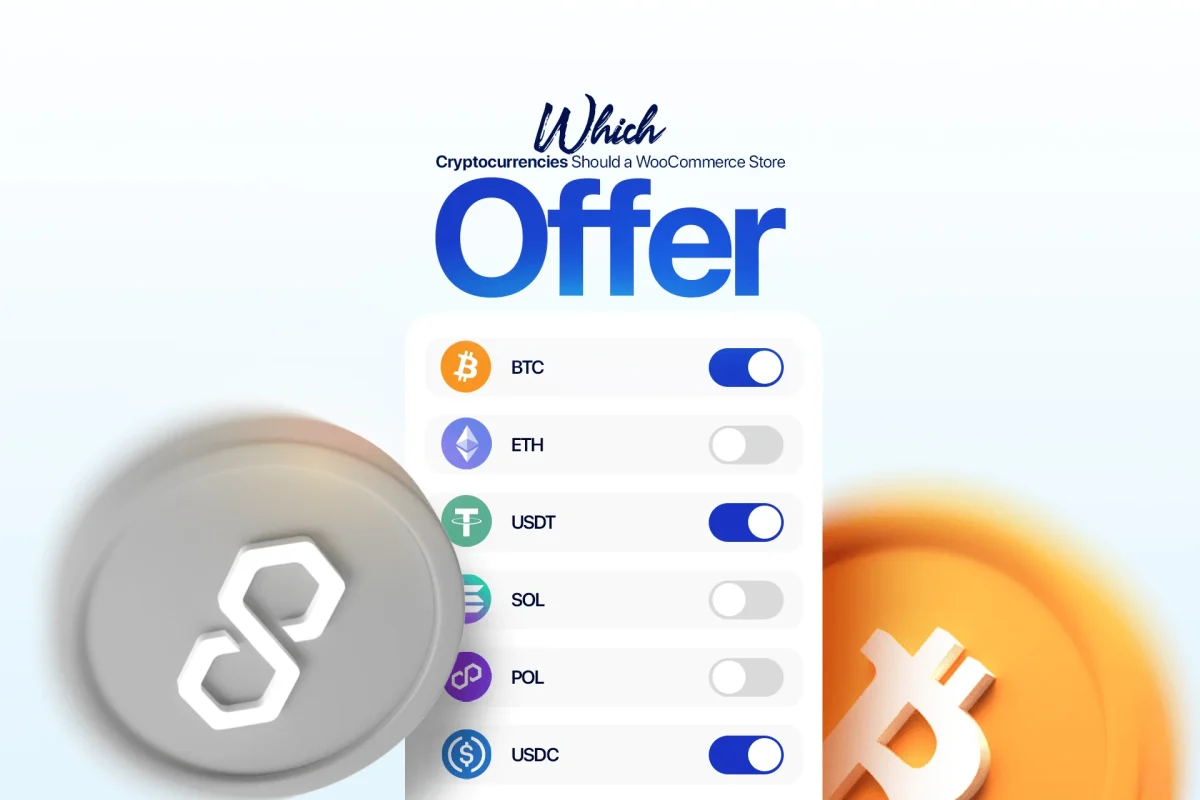
应该提供哪些加密货币和网络?
如果购物者无法识别正确的网络,展示很长的资产列表并无帮助。先从客户已经使用的选项开始,再根据实际支付行为决定是否增加其他选项。
| 决策因素 | 实际问题 |
|---|---|
| 客户需求 | 买家已经熟悉使用哪些币种和网络? |
| 常见订单金额 | 相对于购买金额,网络费用是否合理? |
| 稳定币偏好 | 使用 USDT 或 USDC 是否能让定价和付款金额更容易理解? |
| 钱包兼容性 | 买家能否通过账单上显示的确切网络转账? |
| 客服工作量 | 您的团队能否处理有关已启用组合的问题? |
Clear currency-and-network instructions prevent more friction than an oversized asset list. Review the current supported coins and networks as availability evolves.
客户付款后,资金会如何处理?
WooCommerce 插件将结账与订单管理连接起来,OxaPay 商家设置则决定收到的资产之后如何处理。根据账户配置,您可以在余额中保留受支持的资产、将符合条件的入账资产自动兑换为 USDT,或设置自动提取到外部钱包。
这种区分具有实际运营价值。购物者选择的加密货币不一定要成为财务团队最终希望持有的资产。请结合价格波动、处理费用和会计要求,审慎制定兑换和提现规则。
OxaPay WooCommerce 插件的费用是多少?
OxaPay 插件可免费安装,没有单独的 WordPress 插件订阅费。交易处理费和适用的区块链提现或网络费用属于不同的成本。
Do not treat OxaPay’s advertised “from 0.4%” headline as the standard fee for every WooCommerce payment. The published pricing page lists Merchant Invoice processing at 每笔交易 1.5% and notes that lower rates may be available depending on business arrangements. Confirm the fee applicable to your merchant account before estimating margins or advertising a rate to customers.
导致付款或订单履约问题的常见错误
大多数可以避免的问题来自预期不一致,而不是集成代码太复杂。有些商家没有完成整笔测试订单就启用网关,忽视不同 USDT 网络的区别,或者以为客户返回网站就意味着付款最终确认。另一些商家使用过期插件,或将自动履约与尚未确认的订单状态绑定。
最稳妥的默认做法很直接:使用最新官方插件,清楚标明网络,验证状态同步,并且只在达到可信付款状态后释放订单。
什么时候 WooCommerce 插件比自定义 API 集成更合适?
如果您经营标准的 WordPress 商店,只想在现有付款方式之外增加加密货币,官方插件通常是最直接的起点。它保留 WooCommerce 正常的结账和订单管理模式,无须开发人员维护单独的支付服务。
自定义 API 集成可能更适合无头电商、深度定制的结账流程,或需要在 WooCommerce 之外运行的支付逻辑。额外的控制能力也意味着需要承担更多付款状态管理和持续维护责任。
从一笔完整验证的付款开始
要在 WooCommerce 中可靠地接受加密货币付款,请安装官方 OxaPay 网关,连接 Merchant API Key,选择合适的付款选项,并在向所有购物者开放前验证完整订单流程。当订单能够从结账顺利进入已确认付款和正确的履约状态后,就可以根据真实客户需求优化支持的资产和资金管理设置。
Get the latest installation package and setup reference from the OxaPay WooCommerce plugin page.